Read online or download the free PDF
The trade book
printing guide.
Standard options. Competitive prices. A clear workflow for publishers, designers and authors supplying print-ready files.
Start where you need help
One job.
A clear next step.
Start with our workflow, then use the section for your current task. Keep the specification, files and decisions together against one job.
Read the guide
The same customer guidance as the PDF, in a format that fits your screen. Online proof prices use our current rates; the PDF is a dated edition. The PDF also includes the cover-layout diagrams.
03Working with Imprint Digital
Trade book printing for publishers, designers and authors supplying print-ready files.
A standard range keeps printing efficient
Our competitive prices are built around a defined range of papers, bindings and finishes, with online quoting and ordering. Choose a supported specification, supply checked files and keep decisions together against one job.
Our part
We print, bind and finish your books, provide technical file checks and proofs, and arrange delivery. We can help you use the available options and resolve a problem with your order.
Your part
You or your designer prepare the content and print-ready PDFs. Nominate one person to coordinate the job and approve the current proofs. Check spelling, page order, artwork and delivery details.
The calculator defines our range
If an option is not available in the calculator for your book, we do not offer it. We do not source custom materials or arrange bespoke production outside that range.
Arrange these separately
Editing, proofreading, typesetting, bespoke design, marketing, retail distribution and individual-reader fulfilment. Our templates and Cover Builder are tools for preparing your own artwork.
Choose your specification online →
Link to this answer · PDF page 3
04One job. One clear route.
Use the website for routine steps. Keep the agreed specification and current files together.
Quote and order
Choose the available options in the calculator. Save the quote and continue from it. For an agreed quote or reprint, use its existing link rather than starting again.
Supply the complete files
Upload the interior and cover to the correct job. Include separate files for selected extras where needed. Check that the displayed versions are the ones you intend to print.
Check and approve
Review the current proofs carefully. Submit corrections together, then check the replacement proof. Complete the approval and payment actions shown for your order.
Follow production and delivery
Use your order for its current status and next action. Check the delivery addresses and copy allocations. Use the dispatch tracking once your books have left us.
Before sending an email
Check the current quote, order and relevant guide section. If something is unclear or wrong, reply on the existing thread with the job reference and one complete description.
Open your account and orders →
Link to this answer · PDF page 4
05Prepare one complete job brief.
Use this to fill in the calculator and brief your designer. There is no need to email a duplicate of a completed online quote.
For each title and format
- Book title, paperback or hardback, finished width x height in mm, and copies of this title.
- Total interior PDF pages, including blanks; mono and colour pages; selected paper and binding.
- Cover material, lamination and each extra selected in the calculator. Include the chosen colours and other available settings.
- Proof choice and proof delivery address or addresses. Keep these separate from the full-run allocation.
- Billing details, any purchase-order reference, delivery recipients, countries, postcodes and copies per destination.
- File readiness, the person coordinating the job, the proof approver and any essential arrival date.
For several titles or formats
Keep a separate specification and quantity for each. A paperback and hardback of the same title are different specifications. State copies per title, not just a total number of sets.
Estimate first, confirm before ordering
You can plan a quote while files are being prepared. Before ordering, reconcile the final PDFs, page counts and selected options with the saved quote. Changes can affect price, spine and timing.
Link to this answer · PDF page 5
06Quote online. Keep the specification.
Use the calculator for prices and available options. You do not need to email the same specification for a separate standard quote.
For each title and format
- Finished width x height in millimetres, binding and number of copies.
- Total interior pages, including blanks; mono and colour counts; paper.
- Cover construction, lamination and extras from the calculator options for your book.
- Printed-proof choice, delivery country and postcode, and any firm arrival deadline.
Books or sets?
100 sets containing Book A and Book B means 100 copies of each title: 200 books in total. Give each title its own page count and specification.
Before you accept
Check the total, including the proof, extras, delivery and any applicable tax. A free digital PDF proof comes before printing, unless you choose straight to print. Printed proofs are optional (page 25). Changes to size, paper or page count can change the price and spine.
Minimum quantities and planning
Production runs start at 10 paperbacks or 25 hardbacks. A single printed proof is a check before the run. Final artwork is not needed to explore a price; confirm the final page count and specification before ordering.
Link to this answer · PDF page 6
07Already have an agreed quote?
Continue from the quote we sent you. It is the starting point for your agreed book and price.
Open and check the quote
Check the title, quantity, exact size, paper, binding, extras, proof choice and delivery. If anything differs, send the quote reference and the exact difference before confirming.
Use the linked title or order
Keep files and next steps together. No link in an older quote? Reply on that quote thread with its reference and ask for the next ordering step.
Give your designer one agreed brief
Share the exact width x height, page count, paper, binding, cover construction, finishes, current template and upload link. Name the person who will approve the proof. Confirm changes together before making new artwork.
Reprinting an existing title?
Start from the previous job, not a blank calculator. Confirm what stays the same and list the changes. See page 34.
One person coordinates the job
Share the same quote and current template with your designer. Agree changes together before submitting them. Keep replies on the existing job thread so the latest instruction is clear.
Link to this answer · PDF page 7
08Which paper and binding?
Choose from the papers in the calculator. Use physical samples to compare the available stocks before finalising your specification.
Mainly reading
Uncoated opaque or bookwove papers are useful starting points for text. Compare white and cream, readability and show-through.
Writing or exercises
Start with uncoated paper and test your intended pens on a sample. Paper weight alone does not guarantee that ink will not show through. Check how the binding opens.
Photographs or illustrations
Compare the coated and uncoated stocks offered in the calculator. Paper shade and surface affect colour. Use your own printed proof when the printed result matters.
Choose the construction
A paperback has a flexible cover. A hardback has rigid boards with a printed paper case (PPC) or Wibalin Buckram covering. Choose from the bindings and extras shown in the calculator for your book.
Feel the difference
Gsm measures weight per area, not thickness alone. Paper, page count and binding affect the spine and opening. Handle samples; a screen cannot show texture or opacity.
Link to this answer · PDF page 8
09See the difference: book construction
These are photographs of Imprint books. Compare the construction as well as the printed design.
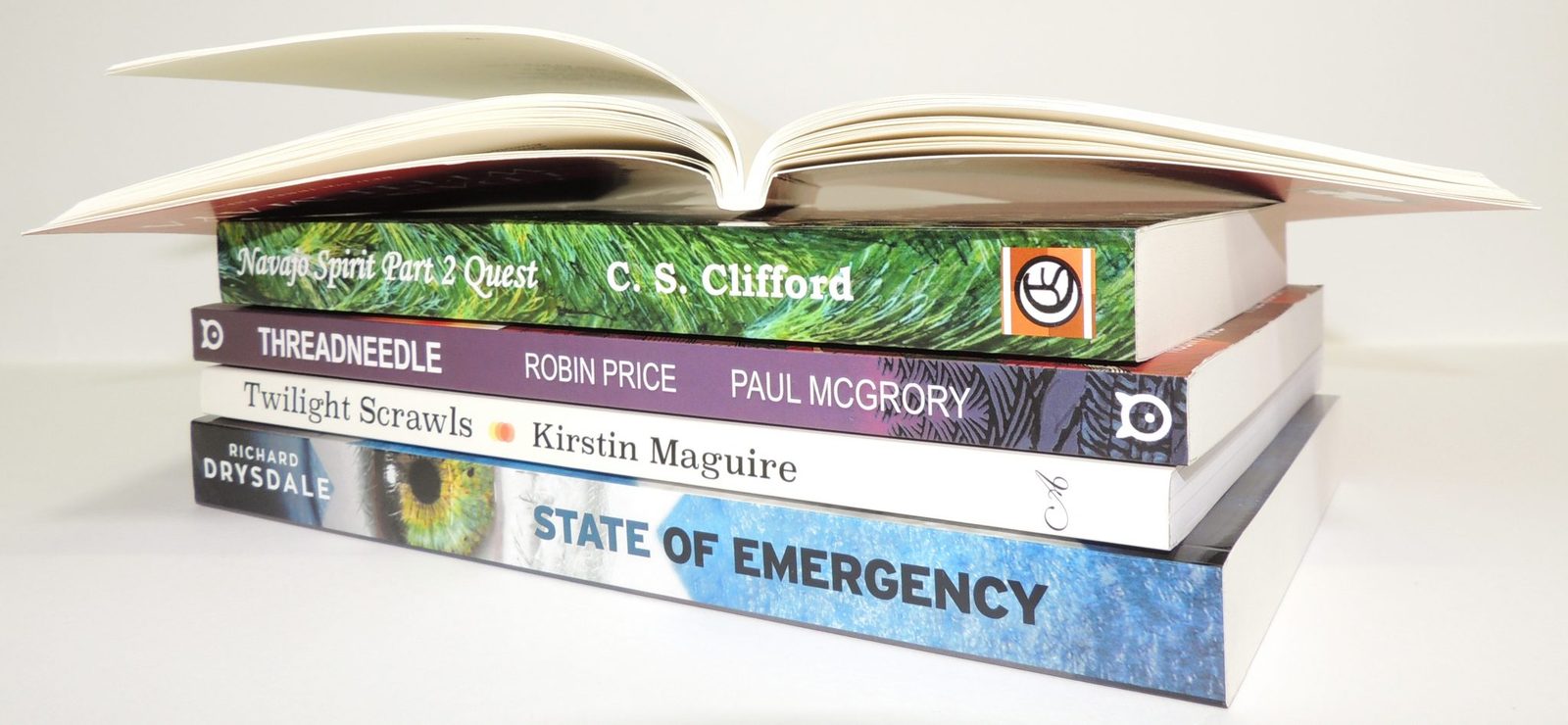
Paperback
A flexible cover surrounds the pages. Paper, extent and binding affect how the book feels and opens.
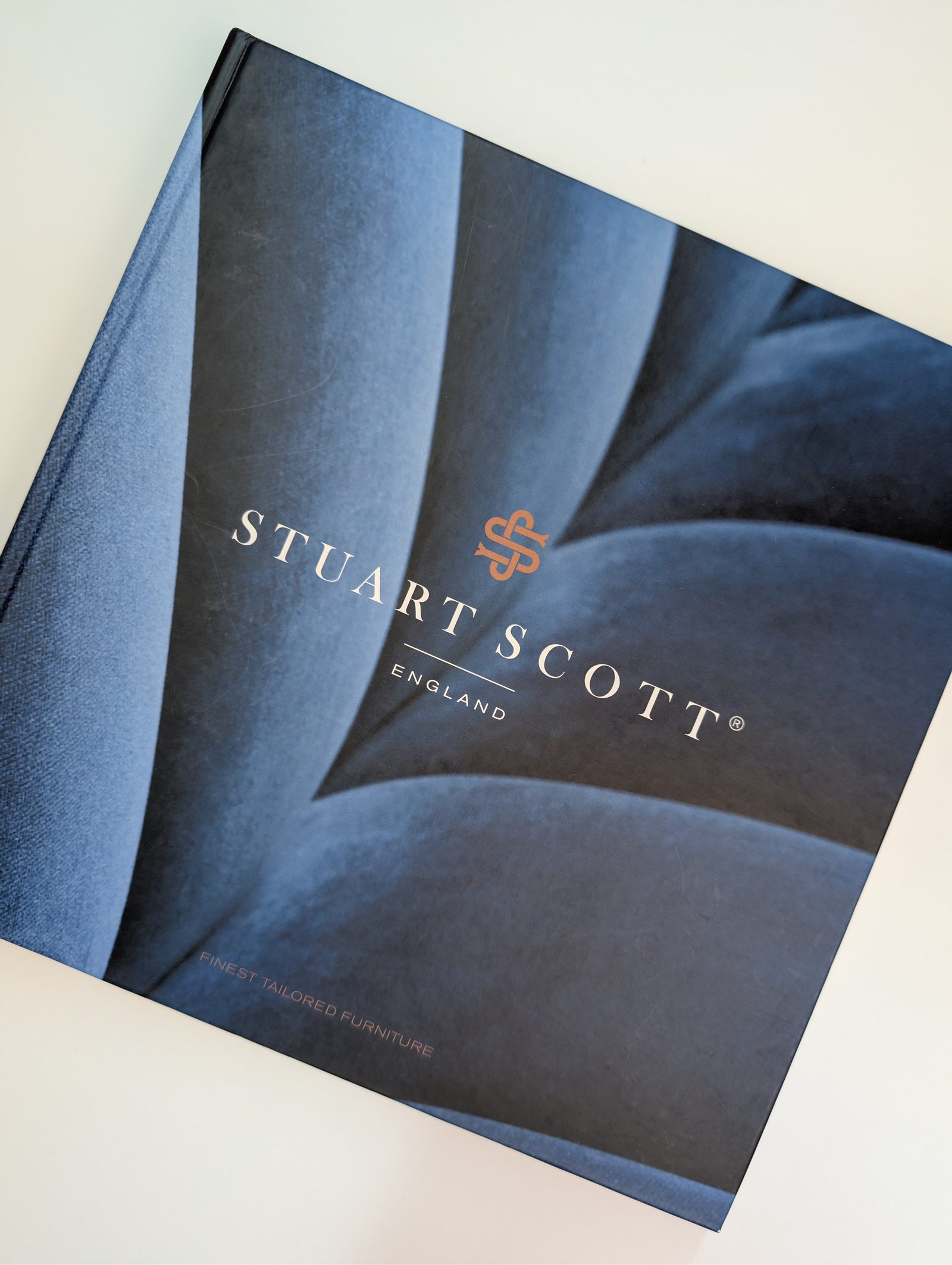
Printed paper case (PPC)
Printed artwork wraps rigid boards, with folded turn-ins around their edges. Use the case template for hinges and turn-ins; a paperback wrap will not fit.
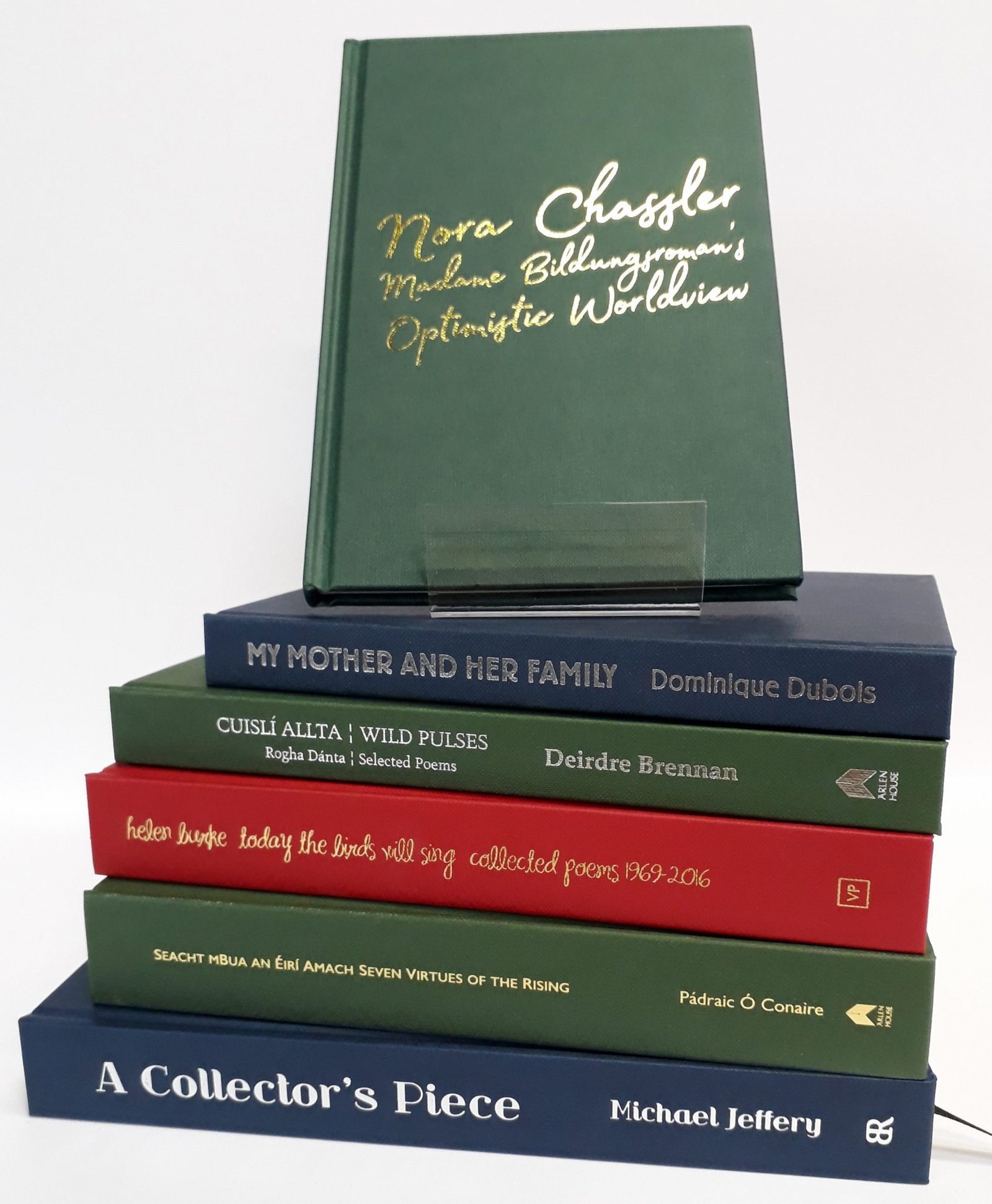
Covered hardback with foil
Choose the covering material and foil from the calculator options. Include them in your quote and prepare artwork for the selected finish.
Examples show particular books, not a fixed specification. Request physical samples to compare feel, colour and opening.
Link to this answer · PDF page 9
10See the difference: flaps, jackets, endpapers
These parts have different jobs. Select the options available for your book in the calculator.
French flaps on a paperback
Extensions of the cover fold inside the front and back. They stay attached to the cover; they are not extra interior pages.
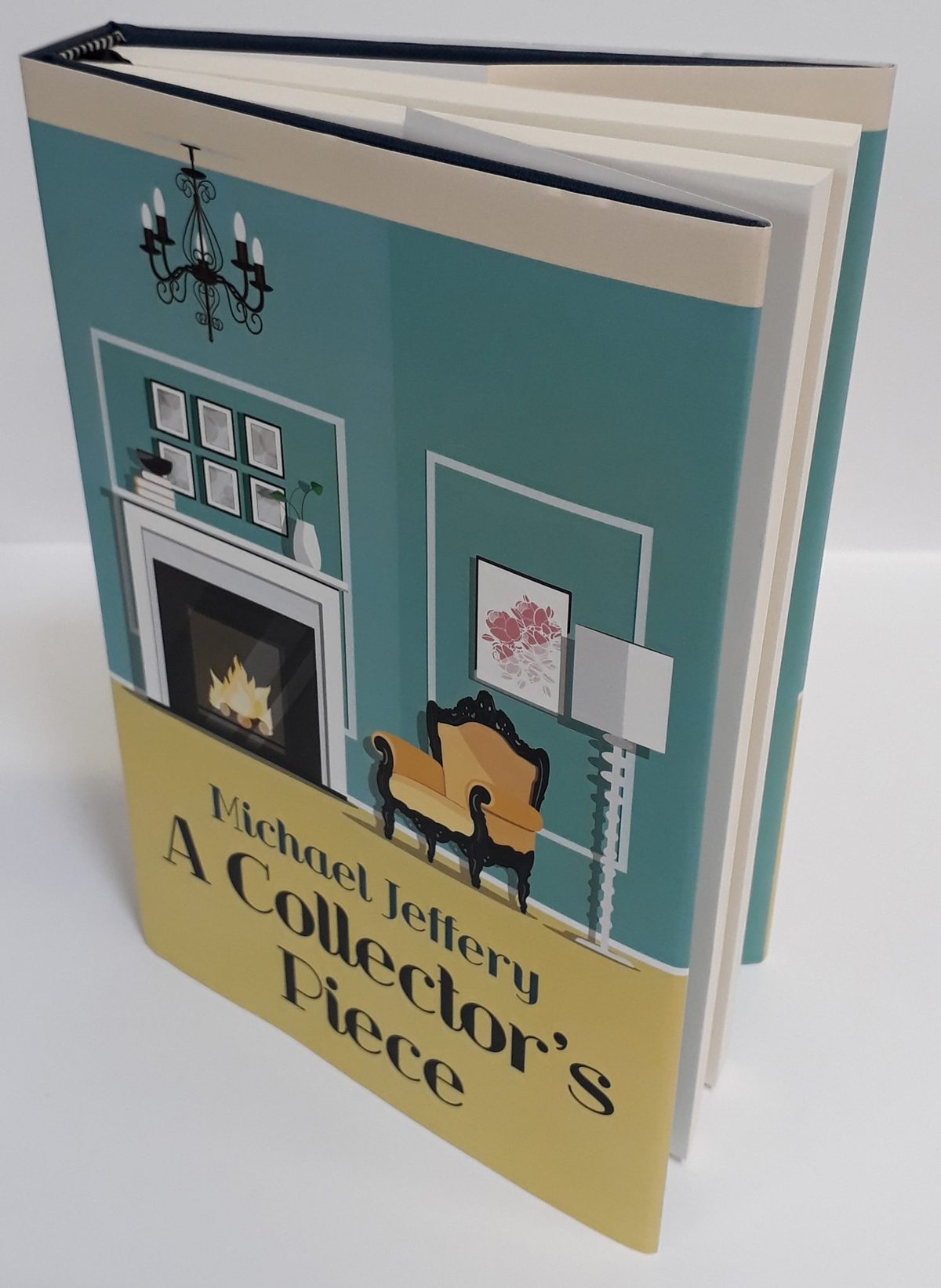
Dustjacket on a hardback
A removable printed jacket wraps the case. Its flaps fold inside the boards; the case remains underneath.
Hardback endpapers
An endpaper has a pasted-down part on the inside board and a free leaf beside the text. Agree the layout for printed endpapers; keep them separate from the interior PDF.
Jacket: product photograph. Flap and endpaper: construction illustrations, not templates. Request samples to judge materials.
Link to this answer · PDF page 10
11How many pages does my book have?
Count the pages in the complete interior PDF, including title pages, contents and intentional blanks. Keep the cover separate.
Count the PDF, not the last printed number
104 numbered pages plus 8 unnumbered opening pages make a 112-page interior PDF. Include intentional blanks. Give the PDF position as well as the printed page number when identifying a page.
A colour example
A 120-page interior with 9 colour pages has 111 mono pages. The colour cover is separate. A coloured heading or background still needs identifying as colour, even if it uses only one accent colour.
Colour pages or a plate section?
List intended colour pages by PDF position. Black-looking content may contain colour data, so reconcile checker results with your quote. For a separate plate section, use the calculator's colour insert option and its stated paper and page limits.
Link to this answer · PDF page 11
12What should my interior PDF look like?
Supply one PDF containing the inside pages in reading order. Export individual pages, even when you designed the book as facing pages.
Before you export
- Set the finished page size to match the quote. Resizing later can change text, margins and page count.
- Include all intentional blank pages. For a standard left-to-right book, the first interior PDF page is a right-hand page; the next is on its reverse.
- Keep the cover in its own file. Do not put two reading pages together on one PDF page or arrange pages into printer's sheets.
Starting in Word?
Our book templates give text-led books a starting layout with styles, mirrored margins and preliminary pages. Finish the content, update the contents table, then check every page of the exported PDF.
Page-count requirements
Some bindings need a particular extent. Use the requirements for your selected specification; do not add or remove blanks just to match a rule from another book.
Download an interior template →
Link to this answer · PDF page 12
13Bleed, trim and margins
These describe different parts of the page. Bleed is outside the finished book; your reading margin is inside it.
Artwork at the edge
Extend edge artwork into the bleed, normally 3 mm beyond each interior trim edge. A5 at 148 x 210 mm becomes 154 x 216 mm with 3 mm all round. Follow any job-specific instructions.
Space for the reader
Keep essential words and details safely inside the trim. Allow comfortable space beside the binding, especially in a thick book. That inner reading margin is not the amount being cut off or a strip entirely lost in glue.
White margins?
Text pages with white margins usually use trim size without bleed. Start from a book template, mirror inside/outside margins on facing pages and judge the opening on a printed proof.
Link to this answer · PDF page 13
14Preparing a paperback cover
Supply the outside cover as one wide PDF page: back, spine and front together. The panels shown here form a portrait book.
Use the final specification
- Confirm trim size, interior page count, paper and binding. Generate the cover template for those choices.
- Extend backgrounds into the 3 mm outer bleed. Keep titles and spine text inside the template's safe areas.
- Remove template artwork and labels. Export the full wrap with bleed and without crop marks.
If the specification changes
A different paper or page count can change the spine. Generate a new template and reposition the artwork; do not stretch the old cover.
More cover options
French flaps are on page 15, inside-cover printing on page 16 and foil blocking on page 19. Use the free barcode generator with your existing ISBN.
Generate your paperback template →
Link to this answer · PDF page 14
15Gatefold covers (French flaps)
A gatefold paperback has extensions to its cover that fold inside the front and back. The flaps are part of the cover, not extra interior pages.
Prepare the complete wrap
- Select French flaps in the calculator. Choose Paperback gatefold in the template generator using the same flap width and final book specification.
- Design flap, back, spine, front and flap on one layout. Use the fold allowances and bleed shown; do not just add panels to a standard paperback PDF.
- Keep important text clear of folds. Check that blurbs, biography text and artwork land on the intended panels when folded.
Outside and reverse are different files
If you also want printing on the reverse, select inside-cover printing in the calculator and follow page 16. Do not add flap content to the interior PDF.
Before export
Remove template markings and keep the full agreed layout. Gatefold templates are available separately from the online Cover Builder.
Generate a gatefold template →
Link to this answer · PDF page 15
16Printing inside a paperback cover
Inside-cover printing uses the reverse of the cover sheet. It is separate from the book's interior pages and from hardback endpapers.
Supply the reverse as a complete layout
- Select inside-cover printing in the calculator. Supply a separate inside-cover PDF at the same overall dimensions as the outside cover.
- Set inside front and inside back for the reverse view shown. Keep lettering readable, not mirrored.
- Leave the spine/gluing area free of print. Confirm the required unprinted strip for your job; do not assume it is only the spine width.
Keep the components distinct
Label files Outside-Cover and Inside-Cover. If there is no matching upload slot, use the route agreed with the team and include the job reference. Keep it separate from the interior PDF.
Check before approval
Check orientation, fold positions and the clear glue strip. For French flaps, use the full gatefold dimensions and identify the reverse artwork.
Review your order and artwork →
Link to this answer · PDF page 16
17Preparing a hardback case
A printed paper case (PPC) wraps around rigid boards. Its hinges and turn-ins need their own layout, even when the interior matches a paperback.
Design around the construction
- Generate the PPC template from the final page count, paper and trim. Use its case dimensions, not a paperback wrap.
- Extend backgrounds through the turn-ins. Keep essential detail clear of folds and hinges, using the marked safe areas.
- Remove template guides and export the complete case artwork. Do not crop away turn-ins or add them to the interior file.
Covered cases and endpapers
Choose Wibalin Buckram and its colour in the calculator. Compare a physical sample if needed. Select any foil or printed endpapers there too; endpapers need separate artwork.
Adding a jacket?
Select the dustjacket option in the calculator. It wraps the finished case and needs its own template and file (page 18).
Generate a hardback case template →
Link to this answer · PDF page 17
18Designing a dustjacket
A dustjacket is a removable printed wrap around a hardback, with a flap tucked inside each board. The case underneath is a separate component.
Size it for the finished case
- Choose Dustjacket in the generator. Confirm final page count, paper, binding and flap width. The boards make it larger than the interior.
- Lay out back flap, back, spine, front and front flap as one wide PDF. Use the jacket's own folds, wrap allowances and bleed.
- Keep flap text and spine lettering within safe areas. Remove template guides before export.
A case template is not a jacket template
Case turn-ins and hinges serve a different purpose. Do not adapt a PPC template to guess jacket dimensions. Check where each flap folds around the boards.
Check both designs
Approve the case as well as the jacket. Label the jacket PDF. Keep artwork and approval clear for each finishing option selected in your quote.
Generate your dustjacket template →
Link to this answer · PDF page 18
19Preparing artwork for foil blocking
Foil is a separate finish. A gold-coloured shape in an ordinary print PDF will print as colour; it does not specify metallic foil.
Make the foil artwork unambiguous
- Choose the foil method, colour and covering material offered in the calculator. Include them in your quote before preparing the artwork.
- Supply solid vector shapes in a clearly named foil PDF or layer, with foil text converted to outlines. Avoid gradients, halftones and photographic effects.
- Keep the foil artwork aligned to the full cover layout. Include a reference showing where it sits; do not send an unpositioned title by itself.
Fine detail needs care
Thin strokes and small lettering may not reproduce cleanly, especially on textured material. Confirm suitability before committing to the design.
What a proof can show
The standard printed hardback proof does not reproduce foil. A reference image shows position, not metallic shine or the final impression.
Read the foil artwork guidance →
Link to this answer · PDF page 19
20Which tool should I use?
Choose the tool for the stage you have reached. Finding a template is the start of making a cover, not the finished artwork.
1 / Template generator
I need the measurements.
Enter the book's specification and download a measured layout to use in your design software. Position your design on it, then remove its markings before export.
2 / Cover Builder
Design a paperback or hardback PPC cover.
Arrange text and artwork in the browser for paperback or printed paper case covers. Gatefolds, dustjackets and inside-cover artwork need a separate design using the relevant measured layout.
3 / PDF file checkers
I already have a PDF.
Inspect the existing cover or interior against the intended specification. Read the findings and review the artwork; a technical check does not proofread your book.
A check is not an order upload
A public check does not attach files to an order, even with a job reference. Submit production files through the upload route linked to your own title or order.
Link to this answer · PDF page 20
21Exporting a PDF that is ready to check
Export from the original document at print quality. Open the exported PDF and inspect it; the working document alone is not the final check.
In Microsoft Word
Use Save As or Export and choose PDF, with the standard/printing quality option rather than minimum file size. Update the contents and page references first. Check that line breaks, images and blank pages have survived the export.
In page-layout software
Export the interior as pages rather than spreads. Include the required bleed for edge artwork. Export the cover separately as its complete wrap. Remove template layers and avoid adding crop marks to the supplied files.
Check the PDF itself
- Dimensions and total page count match the intended book.
- Fonts are embedded, and no characters or images are missing.
- Use the best image or scan available. Aim for 300 pixels per inch at final size; changing a resolution label cannot restore missing detail.
- Colour settings suit print. Use the checker to identify RGB/colour issues and resolve any uncertainty before approving a colour-critical job.
Keep your editable original
Correct the source and export a fresh PDF. Check old photographs at their final printed size. Repeatedly resizing or converting a finished PDF can introduce problems.
Read the Word formatting guide →
Link to this answer · PDF page 21
22File warning? Start with the dimensions
A warning describes a difference to investigate. Compare the requested specification with the actual PDF before changing anything.
Example: expected 148 x 210 mm, supplied 154 x 216 mm
The larger size could be A5 with 3 mm bleed all round. Check the trim and bleed boxes and your export settings. Do not automatically shrink the whole page.
If the interior really is the wrong size
Return to the source document. Set the intended trim, check text flow, margins and page count, then export and inspect a new PDF.
If the cover size or spine is wrong
Confirm the final paper, extent and binding. Generate that cover template and reposition the artwork. Stretching the entire cover can distort text and place the spine incorrectly.
Send one clear question
Give the job reference, filename, expected and supplied values, plus the exact warning. For example: 'A5 interior with 3 mm bleed; PDF is 154 x 216 mm. Please confirm whether the page boxes need changing.'
Illustrative dimensions, not a screenshot or an automatic pass. A deliberate difference still needs review against the job.
Check the file and its specification →
Link to this answer · PDF page 22
23File warning? Colour, fonts and guides
Fix the source where needed, export once, then check the new PDF. Keep the warning and filename together if you need help.
More colour pages than expected
Black-looking text or grey images can contain colour data. List the intended colour pages by PDF position; keep cover colour out of the interior count. Ask for the file and quote to be checked together.
Font missing or not embedded
Export with font embedding enabled. If a font cannot be embedded, use an embeddable licensed font and recheck line breaks, symbols and page count. Inspect the exported PDF, not only the source.
Template lines or labels still visible
Hide or remove template artwork before export. Keep the intended bleed, folds and turn-ins in the page geometry; do not crop away required artwork to remove a guide.
One replacement, clearly identified
Resolve the findings together where possible. State which component changed, supply the new version and check the fresh proof before approval.
Link to this answer · PDF page 23
24Upload your files. Check the next step.
Use the link for your quote, title or order. Confirm the correct book and specification before uploading.
Send and check
- Upload the interior and cover to their matching places. Each PDF can be up to 500 MB.
- Use clear filenames, such as River-Interior-v3.pdf. Wait for completion and check the displayed filenames and versions.
- Read the next action: a correction, proof review, payment or delivery detail may still be needed. An upload is not proof approval.
A warning or failed upload?
Keep the original. Send the job reference, filename, size and exact warning or error. Compare the actual PDF with the agreed specification; ask for review if unclear. Do not keep resizing blindly.
Check the receipt before sending a chaser
If the current filenames and completed upload are shown, continue with the next action. If they are missing or wrong, send the job reference, filenames and exact error once on the existing thread. Avoid uploading the same files through several routes.
Link to this answer · PDF page 24
25Choose your proof
A sample pack helps you choose materials. A proof checks your own book before the main run.
Digital PDF Included
Check the content, sequence, margins and cover layout on screen. It cannot show paper feel or exactly how printed colour will look.
Printed paperback £30
A bound paperback using your book files, for checking pages, paper and print. The price is the same for mono and colour.
Printed hardback proof £65
Your pages bound as a paperback, plus a cover sample. It is not a finished hardback; final opening, foil and spot UV are not reproduced.
Two destinations for the same book
Up to two destinations are included at the same proof price, one proof each, with no extra second-proof postage charge. This is the same title and proof round, not two different books. A new round after artwork changes may be chargeable.
Prices checked 22 September 2026. Confirm your quote total. Use physical product samples to judge finished hardback construction.
Link to this answer · PDF page 25
26Check carefully. Approve clearly.
Review the actual proof supplied for your title and format. Check the latest cover and interior, not an older attachment or screenshot.
Inside pages
- Every page is present, in the right order, including intended blanks.
- Spelling, punctuation, captions, contents and printed page numbers are correct.
- Margins, image placement and pages near the binding look right.
- The intended colour pages and the quoted specification agree.
Cover and other components
- Title, author and any ISBN/barcode are correct.
- Spine artwork is correctly positioned, with essential details clear of folds and trim.
- The design, edition and finish choices match the order.
On a printed proof
Check colour and images in good daylight. Paper, screens and home printers can give different results; a home print is a reference to discuss, not an exact colour guarantee. Resolve concerns before approval. Normal print variation can occur.
Approval is a separate decision
The named approver must review the current proofs. Payment, a quote acceptance or a new upload does not replace approval. Complete the supplied approval steps only after corrections are resolved.
Open your order and proof details →
Link to this answer · PDF page 26
27Send corrections as one clear update.
Collect feedback from the author, editor and designer before submitting the next version.
Agree the complete correction list
One person combines the feedback. Identify the title, format, component and page. Use the PDF page position if printed page numbers are different.
Correct the source and replace the file
Make changes in the original document and export a complete replacement PDF for the affected component. Use a new version name and the job-linked upload route.
Say exactly what changed
Identify the new filename and which components stay unchanged. Mention any changed page count, size, paper or other specification. Check the replacement proof before approval.
Example of a useful update
'Job [reference], paperback: replace the interior with River-Interior-v4.pdf. PDF pages 23 and 48 corrected; total remains 112 pages. Cover-v2 and the specification are unchanged. Please confirm the next proof step.'
Already approved?
Contact us immediately and ask whether production can be stopped. An email or replacement upload is not confirmation of a hold. A new printed-proof round may be chargeable.
Link to this answer · PDF page 27
28What if something needs to change?
Keep each change tied to the title, format and file it affects. Clear instructions help avoid using an old version.
Before approval
Correct the original document, export a new PDF and replace the relevant file through the order's upload route. Describe what changed. Check the new proof before approving it.
After approval
Contact us immediately with the job reference and ask us to confirm whether production can be stopped. Do not assume an email or replacement upload has put the job on hold.
A change to the specification
New paper, page count, size, binding or quantity may affect the price, cover spine and production timing. Confirm the revised specification before using an earlier cover or proof.
Make the request specific
For example: 'Please replace the interior for this paperback order with River-Interior-v4.pdf. PDF page 21 has a corrected caption. The cover is unchanged. Please confirm the next proof step.'
Extra work and new proofs
We will confirm any applicable work or revised quote. A new printed-proof round is separate from the included second proof destination.
Contact us about an order change →
Link to this answer · PDF page 28
29Details that keep your order moving
Confirm the current details together. The person approving the artwork, paying the invoice and receiving the books may be different people.
Billing
Correct customer/company name, billing address and invoice recipient. Tell us early if a finance team needs a purchase order or a particular reference.
Printed proofs
Confirm the recipient, country and full proof address. It defaults to the main delivery address unless changed. Up to two proof destinations can differ from the full-run address.
The full print run
Confirm recipient, country, full address, postcode and contact details. For split delivery, give copies per destination, check the total and confirm carriage.
Payment and approval
Use the current invoice or payment instructions for your order and include the requested reference. Check the payment terms shown for your account/order; do not assume they are the same for every customer. Proof approval remains a separate step.
Something is incorrect?
If an invoice is missing or incorrect, send the job reference and exact issue. If you have already paid, give the payment date, amount and reference so we can reconcile it before another payment is made.
Link to this answer · PDF page 29
30Proofs and books: confirm each destination
Keep proof copies separate from the quantities in the main print run. Send the full current delivery plan when anything changes.
Example: 300 full-run copies
Proofs: one copy to the author and one to the editor. Main run: 200 copies to the warehouse and 100 to the author. Proof copies are separate from those 300 copies.
For every destination
Give the recipient, country, full address, postcode and contact details. Identify proof or full-run copies. Include warehouse references and delivery instructions.
If you change the plan
Restate all destinations and quantities, not only the changed address. For example: 'Replace the full-run plan with 200 copies to the warehouse and 100 to me. Both proof addresses stay unchanged.'
Keep the total correct
Proof copies do not reduce the ordered full-run allocation. Confirm the revised plan with us; a sent email is not confirmation that a booked parcel has been changed.
Link to this answer · PDF page 30
31When will my books arrive?
Dispatch is the day books leave us. Arrival is when the carrier delivers them. Allow for both when planning an event or launch.
What affects the date?
Specification, proofs, corrections, approval and destination all matter. Proof preparation and delivery come before the main run. Use your order's estimate rather than a turnaround mentioned for a different book.
Have a fixed deadline?
Give the essential arrival date, delivery country and postcode when ordering. Check the expected dispatch date and allow for carrier delivery. Confirm timing before committing to an event; changed files or late approval can affect the date.
Are we waiting for you?
Review the order and latest message for a file correction, proof decision, payment or delivery action. Complete that step first. If the status is missing, contradictory or past its expected date, contact us with the job reference.
Changing delivery details
Contact us promptly and ask us to confirm. For split shipments, restate every destination and its copy allocation. Changes may not be possible once a parcel is booked or dispatched.
Link to this answer · PDF page 31
32Before you email: check these first.
Use the existing job thread when you still need help. Include the reference and the exact issue.
Do I need to email for a price?
Use the calculator for a new standard quote. Continue from a saved quote or previous job for an agreed order or reprint.
Can you use another material?
We offer the papers, materials and finishes in the calculator for your book. We do not source alternatives outside that range.
Can you format or proofread my book?
Arrange that with your own editor or designer. Our tools help you prepare artwork; technical PDF checks do not proofread the content.
Have my files arrived?
Check the completed upload and current filenames on your job. If they are missing or wrong, report that specific issue rather than sending another set.
What happens next?
Check the order and latest message for approval, corrected files, payment or delivery details. Payment and upload do not replace proof approval.
Do I need to contact you now?
Contact us for a failed step, unclear instruction, overdue status, delivery problem or urgent change after approval. Send what you know; we can help with the missing detail.
Check your order and next action →
Link to this answer · PDF page 32
33After dispatch: tracking and help
Keep your job reference and delivery details handy. A clear first message helps us investigate.
A parcel has not arrived
Check the carrier and tracking link in your dispatch message. If delivery is late, tracking is unclear or a parcel is missing, send the job reference, destination and tracking details. Tell us about any event deadline.
Damage or a print/binding problem?
- Give the job reference, delivery date and a short description of what is wrong.
- Include clear photographs of the problem and the approximate number of affected copies, if you can.
- For transit damage, include the packaging and parcel-label photographs. Keep the books and packaging while we review.
You can ask before you have every detail
Send what you know and we will advise on the next step. We will review the issue with you; do not assume a replacement has been arranged until confirmed.
Already discussing the issue?
Reply on the existing thread with any new information so the investigation stays together.
Contact us about your delivery →
Link to this answer · PDF page 33
34Ready for another print run?
Use the previous title or job reference. Confirm what stays the same and list every change together.
The same book again
Confirm the new quantity, current delivery details and proof choice. Ask to use the previously approved files, and check that the title and edition match. Use the current reprint quote.
A revised edition
List changes to files, paper, binding, size, finish or delivery. Check copyright-page and edition details too. Revised page count or paper may need a new spine and cover template.
Changing only one component?
Say which file changes and which stays. If a correction is for a future reprint only, say so and confirm that version is recorded. A new filename alone does not explain the change.
An older order is missing online?
Send us the previous job reference and the account email you used, so we can find the record. You do not need to reconstruct the specification from memory.
Before confirming
Review the complete new order, including anything that has stayed the same. Previous addresses, quantities, prices and delivery splits may no longer be right.
Find your title in your account →
Link to this answer · PDF page 34
35Ready for the next step?
Use the checklist for your present stage. You do not need final artwork just to explore a quote.
Ready for a quote
- Each title and format has its own size, binding, page count, colour, paper and quantity. Estimates are identified.
- Extras are selected from the calculator. Proof choice, delivery country/postcode and any arrival deadline are clear.
Ready to upload
- Interior is one PDF of individual pages, with all intended blanks.
- Cover is separate and uses the final specification's template.
- Dimensions, bleed where needed, fonts and images have been checked; template markings are removed.
- The upload belongs to the correct title/order and the current versions are shown.
Ready to approve
- I have checked the actual latest proofs, inside and out.
- The specification, intended colour and file versions agree.
- Required corrections are resolved, and the delivery/proof addresses are current.
- I understand the proof choice, quoted total and remaining actions for this order.
Link to this answer · PDF page 35
36Useful links. Useful answers.
Tap a link in this PDF, or type imprintdigital.com followed by the short path below.
- Quote your book
- Your account and orders
- Interior Word templates
- Measured cover templates
- Design a paperback or PPC cover
- Check an interior PDF
- All tools and cover checker
- Create an ISBN barcode
- Foil artwork guidance
- Dustjackets explained
- Proof options explained
- Request physical samples
If you need help, include the job reference or title, the step you are on, the file/component involved and the exact question or error. A screenshot can help with a website issue.
[email protected] | 01392 851550
Edition: September 2026. Services and prices can change. Your current quote, order instructions and agreed specification apply. Imprint Digital, Unit 1, Seychelles Farm, Upton Pyne, Exeter EX5 5HY.
Link to this answer · PDF page 36
Paper is something
you need to feel.
The guide explains your options. A physical sample pack lets you compare paper, binding and finishes in your hands.
Request a free sample pack →Quote and order online.
Use the options available in our calculator. Already have an agreed quote or a previous job? Continue from that record.
Get a quote →