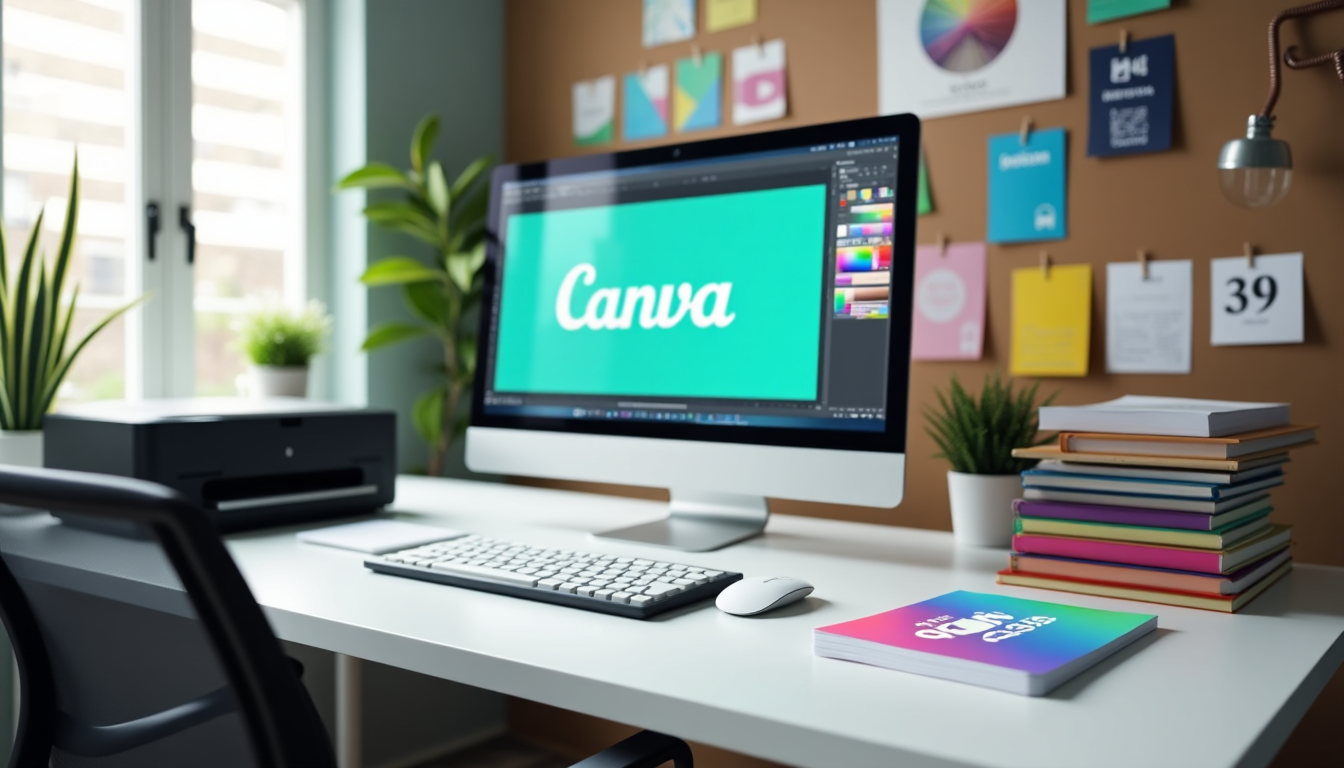
Creating designs in Canva that are ready for printing is important for designers, marketers, and business owners. Canva's simple tools make it easy to craft professional-looking print materials. However, to ensure your designs print correctly, you need to pay attention to some key details.
This guide will show you how to prepare your Canva artwork for print. We'll cover how to set up your document, design your artwork, enhance print quality, and export your files properly. You'll learn about using CMYK colour mode, flattening images, and exporting high-quality PDFs suitable for professional printing. By following these steps, you can create stunning designs that look great both on screen and on paper.
DESIGN YOUR BOOK
Still working
on your cover?
Designing your book cover? Use our free Cover Builder to personalise an editable layout with your title, artwork and a matching front, back and spine, already the right size for your book.
Try it without an account. Sign in to save your work.
Setting Up Your Canva Document for Print
When creating print-ready artwork in Canva, it's crucial to set up the document correctly from the start. This ensures that the final product meets professional printing standards and avoids common issues like white borders or cut-off content.
Choosing the correct canvas size
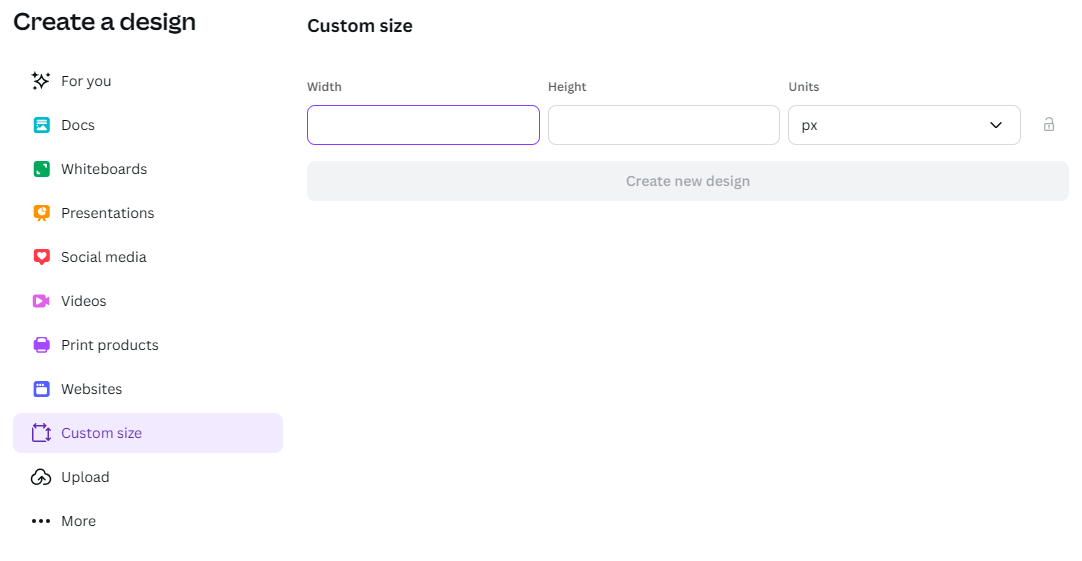
The first step in creating print-ready artwork is selecting the appropriate canvas size. To do this, click on "Create design" at the top right of the Canva homepage. In the dropdown menu, locate the "Custom size" option at the bottom. This opens a window where you can input your desired document dimensions.
For professional printing, it's essential to use the exact specifications provided by your printer, and to set your canvas to the full size including bleed. For a book cover printed with us, that is the "Total template size" from our free cover template tool, worked out for your book's size, page count and paper. It already includes the bleed and, for a hardback case, the turn-ins and hinges, so a hardback cover is much bigger than the book itself. For inside pages, use your trim size, or your trim size plus 3mm on every edge if pictures or colour run to the edge of the page.
If you're using Canva's free version, keep in mind that you won't be able to resize your design later. Therefore, it's crucial to start with the correct size from the beginning.
Adding bleed to your design
Bleed is a crucial element in print design that extends your artwork beyond the final cut line. This ensures that your design reaches the edge of the page without leaving any white borders.
Because your canvas already includes the bleed, leave Canva's own bleed setting off. Canva's "Show print bleed" adds a fixed 1/8 inch (3.175mm) around the canvas, which is not the 3mm we use, and it is only exported together with crop marks, so it makes the PDF the wrong size for your book.
Make sure your background colours and pictures run right to the edge of the canvas. Anything meant to print to the edge of the book has to fill the bleed too, or you will see thin white edges after trimming.
Understanding safe zones
Safe zones, also known as safety margins, are areas within your design where important content should be placed to avoid being cut off during the printing process.
To set up guides in Canva, click on "File" and then "Settings" and "Add guides" and also "Show rulers and Guides". Set both the columns and rows to zero, and enter 3 mm (or about 10 pixels) in both boxes for the margins: on a canvas that includes 3mm bleed, these guides mark where the page is cut. You can also click and drag the guides from the rulers on the top and sides of the document. For a cover, our cover template shows every cut line, spine fold and safe area for your exact book.
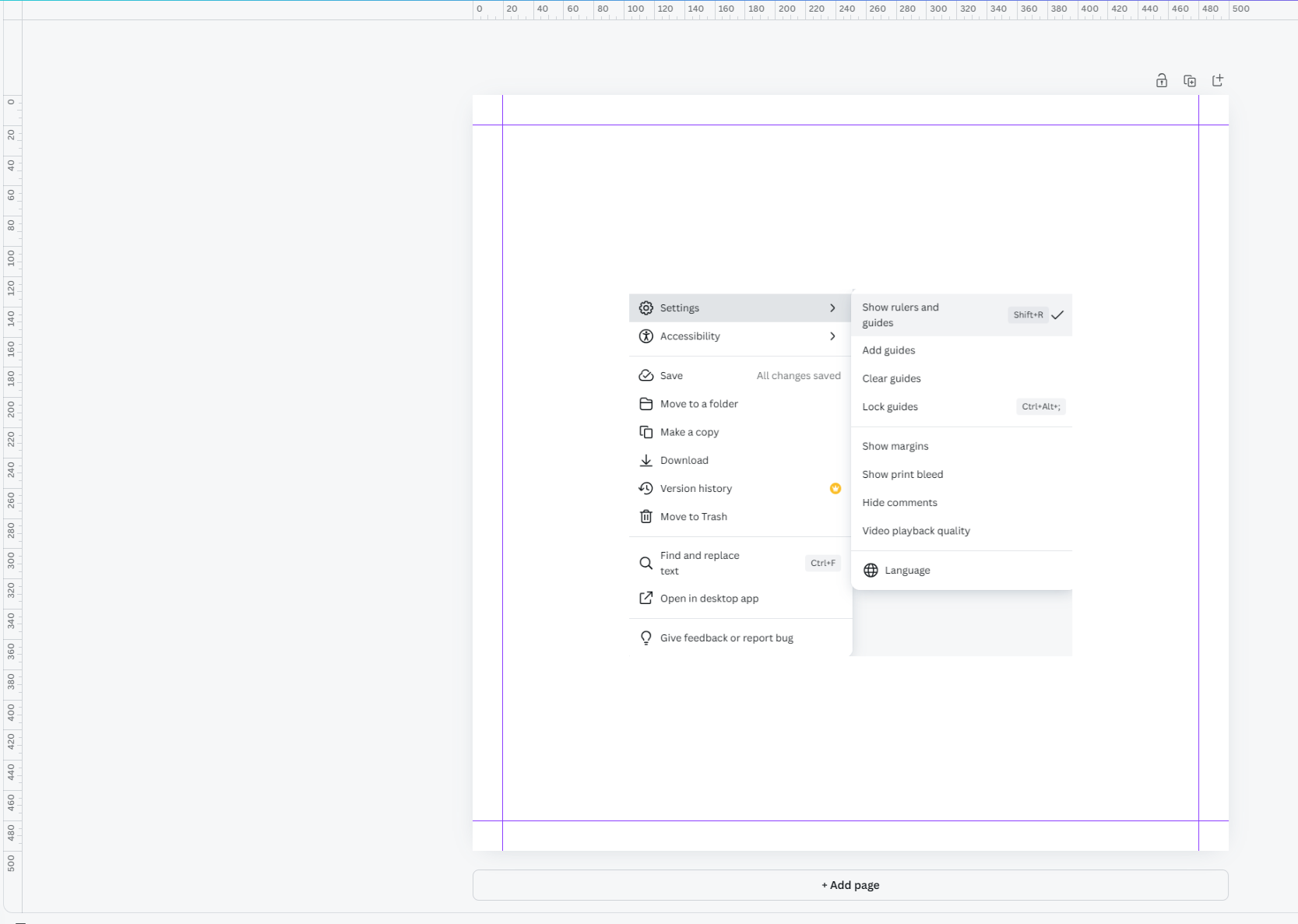
Remember, there's a slight margin of error in cutting. Keep text and anything important at least 5mm inside the cut lines, so at least 8mm in from the edge of a canvas that includes 3mm bleed.
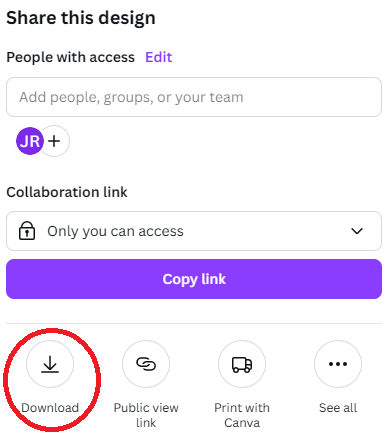
When you're ready to export your design, go to "Share" and select "Download."
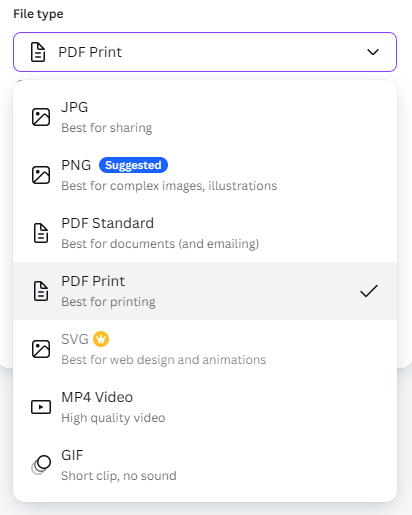
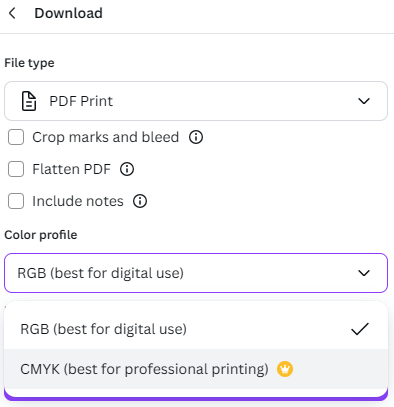
Choose "PDF Print" from the drop-down menu as the file type for the best printing quality. Leave the "Crop marks and bleed" box unticked: your canvas already includes the bleed, so the PDF comes out at exactly the size we print. Crop marks would make the page bigger than your book.
By following these steps, you'll create a print-ready file in Canva with proper bleed and safety margins, ensuring your design looks professional when printed.
Designing Your Artwork in Canva
When creating print-ready artwork in Canva, paying attention to several key aspects is crucial to ensure the final project looks professional and meets printing standards.
Using high-resolution images
Use high-resolution images in your design to achieve clear and high-quality prints. The minimum recommended resolution for print is 300 DPI (dots per inch). Many photos from the internet are low-quality, resulting in blurry prints, so check the size and resolution before using the image. Photos obtained directly from cameras or photographers are often of higher quality than those found on social media or general websites.
If you can't use high-resolution images, incorporate them into your design at smaller dimensions to minimise blurriness when printed. Avoid using low-resolution photos, as they could look very pixelated. Canva offers tools to enhance image quality, such as the AI image enhancer, which can dramatically improve your pictures and increase resolution.
Selecting appropriate fonts
Fonts are crucial in visual design and can significantly impact how people perceive your message. When choosing fonts for your print-ready artwork, consider the style, size, spacing, and colour. Canva provides a wide range of fonts, including elegant and stylish options that are free to use.
For a balanced design, it is recommended that you use no more than two fonts. Pair complementary fonts that add visual interest while working well together. If you choose an elaborate font, balance it with a simpler one. Consider using a typographic hierarchy to establish the order of importance for different design elements by applying various fonts, colours, and scales to your text.
Working with colours for print
Colour selection is crucial for print-ready artwork. To ensure your design is printer-friendly, use CMYK colours. While Canva uses RGB colours by default, you can convert your design to CMYK when exporting.
When choosing colours, select a scheme with 1-3 primary and 1-3 secondary colours that contrast and complement each other. Use different tones of the same colour for consistency by adjusting brightness for contrast. Remember that colours may appear differently on screen than print, so proofing your designs before final printing is essential.
Colour modes: RGB vs CMYK
Understanding the difference between RGB and CMYK colour modes is crucial for creating print-ready artwork. RGB (Red, Green, Blue) is used for on-screen colour displays, while CMYK (Cyan, Magenta, Yellow, Black) is used for printing.
While Canva primarily uses RGB, you can export your design to CMYK. Here's how to do it: Select "Share" from the menu, choose "Download," select "PDF Print" from the File Type dropdown, choose the pages you want to download, select "CMYK" from the Colour Profile dropdown, and then click "Download".
By following these guidelines for high-resolution images, appropriate fonts, colour selection, and colour modes, you'll be well on your way to creating professional print-ready artwork in Canva.
Exporting Your Print-Ready File from Canva
Selecting the right file format
When creating print-ready artwork in Canva, choosing the correct file format is crucial for ensuring high-quality prints. The recommended file format for professional printing is PDF Print. This format preserves the highest quality of your design and is specifically tailored for printing purposes.
To export your design as a PDF Print file, click on the "Share" button in the top right corner of your screen. In the dropdown menu, select "Download." When choosing the file type, be sure to select "PDF Print" from the available options. This format ensures that your design is saved in the highest quality, which is essential for professional printing.
Configuring export settings
After selecting the PDF Print format, make sure the "Crop marks and bleed" box is unticked.
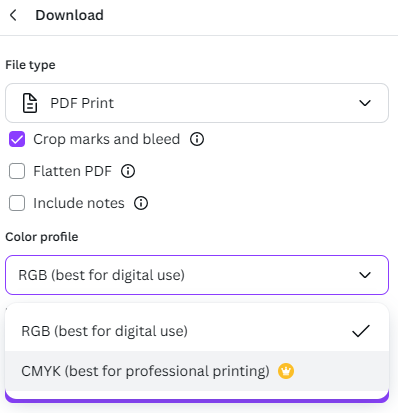
If you have a Canva Pro account, you can switch from RGB to CMYK colour mode. CMYK is the preferred colour profile for printing, as it more accurately represents how colours will appear on paper. If you're using the free version of Canva, your design will be exported in RGB colour mode, which may result in slight colour variations when printed.
Reviewing your final PDF
Before finalising your export, it's essential to review your PDF to ensure everything looks as intended. Pay close attention to the colours, as they might appear slightly different after switching to CMYK mode. If you notice any issues, you can always go back to your Canva design, make the necessary adjustments, and re-export the file.
Also check the page size. Open the PDF and look at its document properties: the page should be exactly the size you set up, with no crop marks around it. When you upload a cover, our cover check compares it with your book and flags anything more than half a millimetre out, so a wrong size is caught before anything prints.
Downloading PDF file from Canva
Once you're satisfied with your export settings and have reviewed your PDF, you can download your print-ready file from Canva. Simply click the "Download" button using the settings recommended above, and your PDF will be saved to your device.
If you anticipate needing to make text changes later, keeping the "Flatten PDF" option unchecked during export is best. This will keep your text editable, allowing for more straightforward modifications after downloading.
Conclusion
Creating print-ready artwork in Canva has become a valuable skill for designers and marketers alike. This guide has walked you through the essential steps to ensure your designs translate seamlessly from screen to paper. From setting up your document with the right dimensions and bleed to optimising your design for print quality, each step plays a crucial role in producing professional-looking materials.
By using high-resolution images, selecting appropriate fonts, and paying close attention to colour modes and export settings, you can create stunning designs that look just as impressive on paper as on-screen.
For more on getting your book printed, see Imprint Digital's book printing services, short-run hardback and paperback printing from just 10 copies (25 for hardbacks), produced entirely in-house at our Exeter facility.